
Connect your watch
PowderTracks is on Android.
There are two ways to get your watch's heart rate and calories into PowderTracks. If you wear a Wear OS watch, the PowderTracks watch app does it directly. Any other watch hands its data to Health Connect through its own app, and PowderTracks picks it up from there.
Both are part of PowderTracks Premium: a one-time $19.99 purchase, yours for life. No subscription.
PowderTracks watch app (Wear OS)
On a Wear OS watch, such as a Pixel Watch or a Galaxy Watch, PowderTracks has its own watch app. Your phone still does the tracking; the watch shows what the phone sends it.
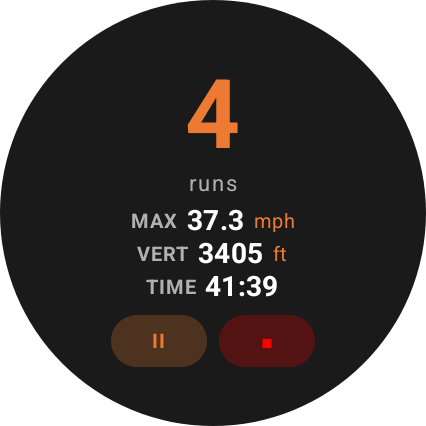
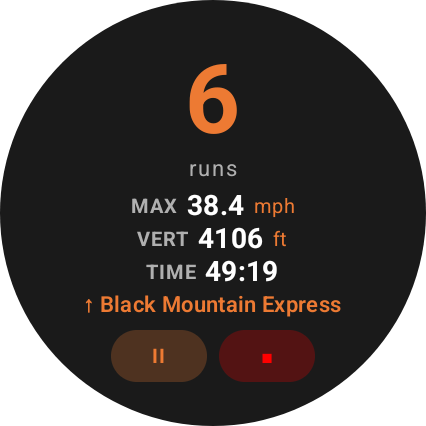
- Live stats on your wrist. Runs, max speed, vertical and time, plus the name of the lift you're riding.
- Pause, Resume and End from the watch. Tap a button, then confirm. While you're paused the watch shows Resume only, so resume first if you want to end the day.
- Heart rate from the watch's sensor. The watch records your heart rate while you track and sends it to your phone when you end the day. No Health Connect setup needed. PowderTracks also uses it to estimate your calories.
Set it up
- Install PowderTracks on your phone from Google Play, then install it on your watch from the Play Store on the watch.
- In the phone app, check that Settings → Backup & Sync → Wear OS → Watch Stats Sync is on. It's on by default.
- Start tracking on your phone, then open PowderTracks on your watch to see your stats.
- The first time you track, the watch asks for permission to read your heart rate from its sensors. Allow it; without it the watch still shows your stats, just no heart rate.
Your watch's own app (Health Connect)
Health Connect is the place on your Android phone where health and fitness apps share data. Your watch records the workout, its app hands it to Health Connect, and PowderTracks picks up the calories for your ski day.
The catch: every watch app connects to Health Connect a little differently, and most of them don't do it until you switch it on. If your calories aren't showing up, find your watch app below and walk through the steps once.
Google Health (Pixel Watch / Fitbit)
Google Health is the app that used to be called Fitbit. In the app:
- Tap your profile picture.
- Tap Partner apps.
- Find “Sync your favorite health apps” and tap Set up.
- Tap Accept.
- Allow Exercise, Calories and Heart rate.
- Allow background access, so it keeps syncing when the app isn't open.
- Tap Done.
Workouts from before you set this up can take a while to appear. Google Health may copy recent ones over some time later, so if an earlier ski day has no watch calories yet, check back the next day. New workouts usually show up within minutes of syncing.
Samsung Health (Galaxy Watch)
In the Samsung Health app:
- Go to Settings → Health Connect → App permissions and turn the permissions on.
- Then go to Settings → Sync with Samsung account and tap Sync now.
Galaxy Watch data reaches Health Connect through the phone, on Samsung's schedule, so it can take a while to show up after your day.
Garmin Connect
Garmin Connect can share your workouts, calories and heart rate with Health Connect, but you have to opt in. In the Garmin Connect app:
- Tap More (the menu), then Settings.
- Tap Connected Apps, then Health Connect.
- Follow the prompts and allow Garmin Connect to share your activity data — Allow all is simplest.
Menu names can shift a little between Garmin Connect versions. If you don't see Health Connect there, update the app and look again. Garmin sends data to Health Connect after your watch syncs with the app, so sync your watch first.
Any other app
You can grant access from Android itself:
- Open Android Settings → Security & privacy → Privacy → Health Connect.
- Tap App permissions.
- Tap your watch app and choose Allow all.
If your app isn't listed, open the app itself and look for Health Connect in its settings — most apps have to ask to join before they appear. (Menu names vary a little between phone makers.)
Check it worked
Open Health Connect → Data and access → Activity → Exercise. Your workout should be listed there. If it is, PowderTracks can see it too.
Why calories differ from my watch
They're usually within a few percent. When they're further apart, it's normally one of these:
- Your watch shows its own summary. The calorie total on your watch's workout screen is your watch app's own number. Health Connect doesn't receive that total. It receives the calorie records the app writes during the workout. PowderTracks adds up your watch app's records for the workout, which usually comes out within a few percent of the watch.
- The workout's start and end. PowderTracks counts calories from when your watch workout started to when it ended, not from when you pressed Start in PowderTracks. Starting both at about the same time gives the cleanest match. If the watch workout started well before your PowderTracks day or kept running well after it (say, the drive home), only the part during your day counts, and the number is labelled “clipped”.
- Total vs active calories. Some watches show only active calories (what you burned above resting). PowderTracks shows total calories when they're available, so its number can be higher.
- It hasn't synced yet. Watch data can take a while to reach Health Connect, and older workouts can take longer. PowderTracks checks a few times in the first hours after you save a day, then again each time you open it over the next two days. Those first checks run with your phone locked only if you allow Health data in the background in Settings → Connections; otherwise they wait until you next open the app. Tap Refresh health data on the day to check now.
- The phone's own estimate. If your watch app isn't sharing, the only number may be your phone's step-based guess, labelled “phone estimate”. A phone barely registers skiing, so PowderTracks ranks it below its own estimate.
- Your own number. If you know better, enter it in Edit Session → Calories. It's labelled “entered”.
Tip: start both at the same time
Start the workout on your watch and start tracking in PowderTracks at about the same time. PowderTracks matches the watch workout to your ski day by time, so a close start gives the cleanest match.
Upload a ski day to Health Connect
PowderTracks Premium can send a ski day the other way too. The day is saved to Health Connect as a workout, for other apps that read workouts from it. It may not appear in your watch's app: see Will my watch app show it? Open a saved day, tap the upload icon at the top, then tap Health Connect.
What gets written. One workout for that day:
- skiing or snowboarding, from the day's sport;
- its start and end time (a drive at the start or end of the day is left off);
- the distance you skied;
- the elevation you climbed yourself, on a touring day only. A lift-served day has no elevation gained, because riding a lift isn't climbing;
- calories, only when PowderTracks worked them out from your heart rate. A number that came from Health Connect, one you typed in, or an estimate without heart rate is not written.
What is never written. Your GPS route or any location, and your heart rate.
When. Only when you tap Upload, one day at a time. Nothing is written when you save a day, and nothing is written in the background.
Permission. The first time you tap Health Connect in the upload menu (or Connect in Settings → Connections), Android asks whether PowderTracks may write exercise, distance, elevation gained and calories. PowderTracks never asks when you install it. If you say no, nothing is uploaded and you can turn it on later in Settings → Connections. Reading and writing are separate: you can allow either one without the other.
If your watch already logged the day. PowderTracks tells you, and asks before it adds a second workout next to the watch's. Apps that total your workouts may then count the day twice.
Older days. Health Connect only lets PowderTracks look back about 30 days for other apps' workouts. For an older day, or when PowderTracks isn't allowed to read workouts, it can't tell whether your watch already logged the day, so it says so and asks before uploading.
Once per day. After a day is uploaded its row shows Uploaded and can't be sent again.
Deleting. Deleting a day in PowderTracks does not remove its workout from Health Connect. To remove it, open Health Connect → Data and access → Activity → Exercise and delete it there.
Turning it off. Open Settings → Connections → Manage permissions and switch off the write permissions. Workouts already uploaded stay until you delete them.
Will my watch app show it? Maybe not. PowderTracks saves the workout to Health Connect, and that is all it can do; each app decides for itself whether to show workouts that other apps wrote. In our own test the upload was saved to Health Connect, but Google Health went on showing only the watch's workout for that day. The upload does not send anything to your watch. You can see what was saved in Health Connect → Data and access → Activity → Exercise.
Still stuck?
Email support@powdertracks.com and tell us which watch and app you use. We'll help.